---
title: 'Web assets: the right way to add Javascript and CSS to Joomla'
description: 'Web assets and child templates are the best performing and cleanest solution to add Javascript and CSS (and more) to our Joomla site!'
lang: en-GB
type: BlogPosting
category: Blog
tags:
- Joomla!
- How-to
image: 'https://www.htmlcrusco.it/images/joomla-child-template-web-assets.jpg'
author:
image: 'https://www.htmlcrusco.it/media/plg_user_cruauthorbiobox/images/authors/7711710768316.svg'
name: 'Luca Gabbiati'
job_title: 'SR Software Developer'
bio: "I love writing code, learning new things, and traveling while reading a good book. Software and books are my Ikigai. Who knows, maybe in a world without one or the other, I wouldn't exist... well, all things considered, it turned out well!"
date: '2025-01-04T17:00:00+00:00'
lastmod: '2026-07-12T15:22:00+00:00'
canonical_url: 'https://www.htmlcrusco.it/en/blog/web-assets-the-right-way-to-add-javascript-and-css-to-joomla'
---
Designed by [Freepik](https://www.freepik.com/)
- [The goal](#post-obiettivo)
- [The issue](#post-problema)
- [Child templates](#post-childtemplate)
- [Web assets](#post-webasset)
- [Conclusions](#post-conclusioni)
## The goal
Unless you have an office on Venus, where a day lasts 5,832 hours, anyone who has to develop a website today knows that they will have to make use of external resources, whether their own or third-party resources.
Obviously, it cannot be abused on pain of site performance degradation, but like it or not, some JavaScript script for asynchronous communication or a CSS stylesheet that enriches the user experience, we will have to use it.
In this article we will give a concrete, real-world example regarding the **HTML Crusco** web site.
The web site was natively designed on **Joomla 5** starting with the default **Cassiopeia** template, very light, accessible and without too many frills, just the way I like it. A perfect blank canvas to draw on.
The goal is to use [Animate.css](https://animate.style/ "Animate.css | A cross-browser library of CSS animations."), a cross-browser library of CSS animations.
## The issue
> So, where's the problem? Open the template file and put the link to the library in it. It takes very little, a couple of minutes! ~ My cousin
The "geeky" cousin will do the tweak for you in two minutes, no problem!
In fact, the problem is there and it is also a big one: changes made directly to template files are short-lived, because **they will be overwritten on the first update**.
Surely Cousins & Co. will be able to redo the change with each update (will they have their office on Venus?) but you, who are used to optimizing time and want to work professionally, know that starting with Joomla 4.1, solutions have been implemented both to avoid overwriting changes during updates and to load external libraries while respecting Joomla's design pattern.
Let's see them together.
## Child templates
The child template (henceforth *child*) inherits everything from the parent template.
Initially, it consists only of the file `templateDetails.xml`
This initial status indicates to us that the *child* uses by default all the files of the template it inherited from.
If we want to make a change to a template file, simply copy the file from the parent to the *child* and make the change on the copied file.
This prevents overwriting of changes during updates.
To create the *child* we need to access the Joomla administration in the **System ⟶ Site Templates** area, select the template from which to inherit (in our example Cassiopeia), press the **Create Child Template** button, type the name of the new template and confirm.
[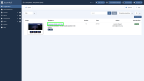](https://www.htmlcrusco.it/images/phocagallery/thumbs/phoca_thumb_l_joomla-child-template-eng-01.png)Under System ⟶ Site Templates, select the parent template from which to create the *child*.
[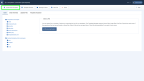](https://www.htmlcrusco.it/images/phocagallery/thumbs/phoca_thumb_l_joomla-child-template-eng-02.png)The “Create Child Template” button.
[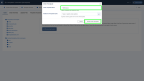](https://www.htmlcrusco.it/images/phocagallery/thumbs/phoca_thumb_l_joomla-child-template-eng-03.png)Type in the *child* name and confirm.
[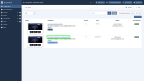](https://www.htmlcrusco.it/images/phocagallery/thumbs/phoca_thumb_l_joomla-child-template-eng-04.png)The *child* you just created, appears in the site's list of templates.
[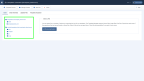](https://www.htmlcrusco.it/images/phocagallery/thumbs/phoca_thumb_l_joomla-child-template-eng-05.png)The child template file folder structure.
In the last image you can see the folder and file structure of the newly created *child* and the only presence of the `templateDetails.xml` file.
In the `/media/templates/site/cassiopeia_htmlcrusco` folder will go all the assets we will need to use in our *child*: css, images, js and scss.
For our goal, the folder we are interested in is **css**.
In this one we are going to copy the `animate.min.css` file which is the library for the animations.
You can download it from the [GitHub repository](https://github.com/animate-css/animate.css "A cross-browser library of CSS animations. As easy to use as an easy thing.").
If you do not want to have the library locally but prefer to use the corresponding CDN, you can skip the download and copy.
**Want to know more about child templates?**
We recommend you to read [Sweet child o' mine... A deep dive into Joomla Child Templates](https://magazine.joomla.org/all-issues/may-2022/a-deep-dive-into-joomla-child-templates) on Joomla! Magazine
## Web assets
Web assets allow a Joomla website to load and use Javascript and CSS libraries while respecting the design pattern of the Joomla framework.
This, in addition to providing an increase in page loading speed and code readability and maintenance, allows us to easily specify and manage dependencies required by more complex libraries.
In our example we will make use of web assets to load and use in our *child* the library [Animate.css](https://animate.style/ "Animate.css | A cross-browser library of CSS animations.").
The first thing we need to do is to **register the asset**.
Templates register their assets by specifying them in the `joomla.asset.json` file.
You can find it in the folder of the template you are using, in our case `/templates/cassiopeia/joomla.asset.json`
Is that right?
No, because we created our *child* for the reasons you now know, and so we have to use the *child* folder.
I know, the file in that folder is not there, because the *child* by default uses the same assets as the parent template.
If we want to use other assets, we need to create our own file in the *child* folder.
You can take the one `/templates/cassiopeia/joomla.asset.json` from the parent template, copy it to the *child* `/templates/cassiopeia_htmlcrusco/` and clean it of all assets present.
After the cleaning is finished you should have something like this:
```
{
"$schema": "https://developer.joomla.org/schemas/json-schema/web_assets.json",
"name": "cassiopeia",
"version": "4.0.0",
"description": "This file contains details of the assets used by Cassiopeia HTML Crusco.",
"license": "GPL-2.0-or-later",
"assets": []
}
```
Now let's add the definition for our asset:
```
{
"$schema": "https://developer.joomla.org/schemas/json-schema/web_assets.json",
"name": "cassiopeia",
"version": "4.0.0",
"description": "This file contains details of the assets used by Cassiopeia HTML Crusco.",
"license": "GPL-2.0-or-later",
"assets": [
{
"name": "animate",
"type": "style",
"uri": "animate.min.css"
}
]
}
```
**name** is the library identifier, which we will use shortly.
**type** is the asset type, in our case "style".
**uri** is the address where to find the library file:
`animate.min.css` if you copied the library locally;
`https://cdnjs.cloudflare.com/ajax/libs/animate.css/4.1.1/animate.min.cs` If you prefer to use the CDN.
With this operation, our asset is registered in the **WebAssetRegistry**, but not yet attached to the pages during their rendering.
To do this we have to **use the asset**, that is, tell the **WebAssetManager** to include it in the pages when they are loaded.
We can do this in the `index.php` file of the template: we copy it from the parent template cassiopeia `/templates/cassiopeia/index.php` to our *child* cassiopeia\_htmlcrusco `/templates/cassiopeia_htmlcrusco/`
Now we can edit it by adding the use of our asset to those already present.
To identify our asset we use the name “animate,” which we defined earlier in the `joomla.asset.json` file:
```
$wa->usePreset('template.cassiopeia.' . ($this->direction === 'rtl' ? 'rtl' : 'ltr'))
->useStyle('template.active.language')
->registerAndUseStyle($assetColorName, 'global/' . $paramsColorName . '.css')
->useStyle('template.user')
->useScript('template.user')
->useStyle('animate')
->addInlineStyle(":root {
--hue: 214;
--template-bg-light: #f0f4fb;
--template-text-dark: #495057;
--template-text-light: #ffffff;
--template-link-color: var(--link-color);
--template-special-color: #001B4C;
$fontStyles
}");
```
In the code above, `$wa` is the instance of the WebAssetManager, found in all templates designed for Joomla 4 and Joomla 5.
If for some reason it is not there, you can create it yourself with `$wa = $this->getWebAssetManager();` and then use the asset as shown before:
`$wa->useStyle('animate');`
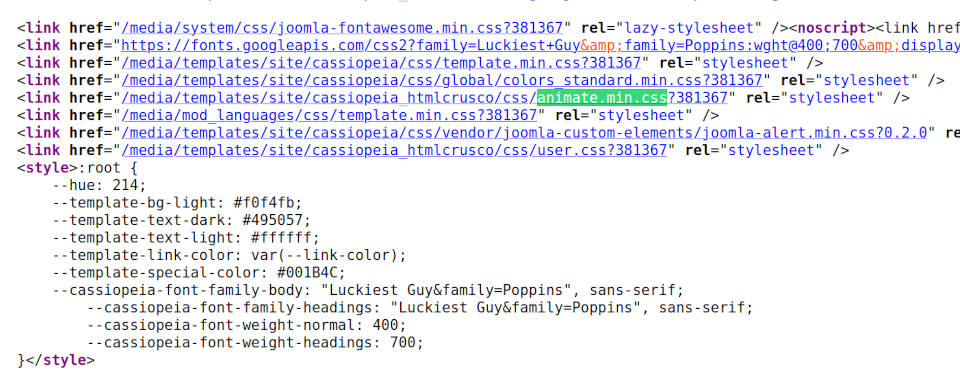The HTML code of the web pages confirms to us that our asset has been correctly included.
## Conclusioni
In this article we learned that on Venus the work days never end, that *child* are a godsend for those who need to edit template files, and that, thanks to web assets, there is a clean and professional way to add Javascript and CSS libraries to our favorite (child) template!
I would like to point out that we have only touched on the potential of web assets with my example.
Maybe I will take up the topic again with a possible next article...
For those who want to learn more about web assets and their use for other purposes, such as inline scripts, inline styles, and web components, you can start by reading the [official Joomla! documentation.](https://docs.joomla.org/J4.x:Web_Assets "Web Assets")
**Let the level up be with you!**